
Subtotal $0.00


The core difference between SharePoint and OneDrive boils down to a simple, powerful concept: OneDrive is for personal work files ('Me'), while SharePoint is for shared team files ('We'). Think of OneDrive as your private digital desk for drafting documents, and SharePoint as the official, secure library for team projects, company records, and collaborative business processes.
Understanding the Core 'Me vs. We' Difference
Choosing between SharePoint and OneDrive isn’t about picking the better tool; it’s about understanding the specific job each is designed for within the Microsoft 365 ecosystem. The decision hinges on the critical 'Me vs. We' concept. Mastering this distinction is the first step toward building a digital workspace that is organised, secure, and genuinely efficient.
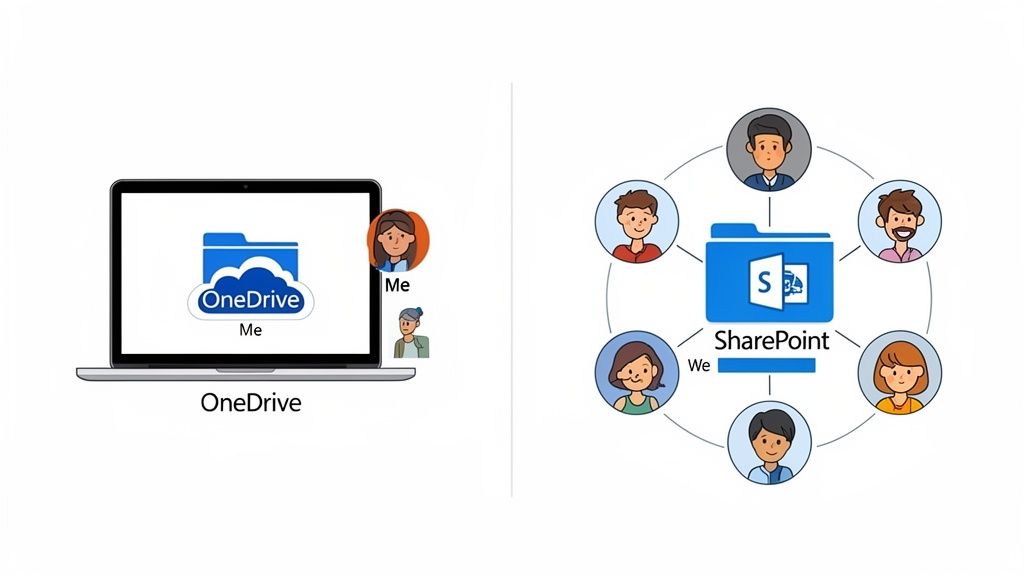
This clarity helps avoid common but costly mistakes. A classic pitfall is storing critical company data—like client contracts or project plans—in an employee's personal OneDrive. This creates a significant business risk, because if that person leaves the company, the data becomes orphaned, difficult to recover, and poses a security threat.
OneDrive: The Individual's Workspace ('Me')
Your OneDrive for Business is your personal, digital workbench. It is the designated place for files that belong to you as an individual contributor before they are ready for official team collaboration.
Common use cases include:
- Drafts and works-in-progress: Documents, spreadsheets, and presentations you are creating that are not yet ready for formal team review.
- Personal work notes: Your private meeting minutes, performance review drafts, or preparation notes that are not intended for general access.
- Ad-hoc sharing: Situations where you need to quickly share a file with one or two colleagues for informal feedback.
If a file’s lifecycle is tied to a single person’s workflow, OneDrive is its natural home.
SharePoint: The Team's Central Hub ('We')
In contrast, SharePoint Online is the central, shared hub for a team, department, or the entire organisation. It’s engineered for documents and information that the business owns collectively, supporting long-term collaboration, process automation, and robust information governance.
The crucial mind shift is moving from 'my file' to 'our asset'. SharePoint is where documents go when they become part of the company's shared knowledge, accessible to the team regardless of who is on holiday or has left the business.
This clear separation is vital for business continuity and security. Without it, companies often struggle with data chaos, productivity bottlenecks, and worrying security gaps. A well-designed information strategy, often implemented with the help of structured IT support, ensures everyone instinctively uses the right tool for the right job from the outset.
SharePoint vs OneDrive: Quick Decision Guide
To make the choice even clearer, this quick guide breaks down the core differences based on what each platform is built to do.
| Criterion | OneDrive for Business | SharePoint Online |
|---|---|---|
| Primary Purpose | Personal file storage and drafting ('Me' work). | Team collaboration and document management ('We' work). |
| File Ownership | Belongs to the individual user's account. | Owned by the organisation or team. |
| Typical Use Case | Storing personal drafts, performance notes, informal sharing. | Project documents, team resources, company policies, intranets. |
| Collaboration Model | Simple, direct sharing with specific individuals. | Structured collaboration with version history and workflows. |
This table provides a practical framework for making the right call instantly for almost any file you create or receive. The context is key: is it yours, or is it ours?
Comparing Key Features for Business Operations
To truly grasp the SharePoint vs. OneDrive distinction, we must look beyond the 'Me vs. We' concept and examine how their features impact day-to-day business operations. The platforms are built on different foundations, leading to distinct approaches for file ownership, collaboration, and integration that ultimately determine the right tool for a given task. Choosing incorrectly can lead to scattered data, security vulnerabilities, and inefficient workflows.
This section provides a practical, side-by-side comparison of their core functions, using real-world scenarios as a guide. We'll explore why a marketing team relies on a SharePoint site to manage campaign assets, while a manager drafts a sensitive performance review in their private OneDrive.
Core Architecture and File Ownership
The most fundamental difference lies in their architecture. OneDrive is built around individual user accounts. Every file stored in a person's OneDrive is owned by that specific account. While files can be shared, ultimate ownership and control remain with the individual. This model is perfect for personal drafts and working documents that do not require a formal, company-owned lifecycle.
In contrast, SharePoint is built on a site-based architecture. Files are stored in document libraries within a SharePoint site, which is owned by the organisation, not an individual. This team-centric model ensures that if the employee who uploaded a file leaves the company, the file remains secure within the team site, fully accessible to authorised colleagues.
This distinction is absolutely vital for business continuity.
If a file needs to exist and be accessible long after any single employee has moved on, it belongs in SharePoint. Tying critical company assets to an individual's OneDrive account is a major operational risk that many businesses only notice when it’s too late.
Collaboration Models Compared
Both platforms enable real-time co-authoring of documents like Word files or Excel spreadsheets. However, the context and structure surrounding that collaboration are worlds apart.
OneDrive's collaboration is informal and ad-hoc. It's excellent for quickly sharing a draft with a colleague for immediate feedback. You send a link, they make their edits, and the exchange is typically direct and simple. Think of it as the digital equivalent of passing a notebook across a desk.
SharePoint provides structured, governed collaboration. It includes powerful version history, allowing you to track every change and restore previous versions if needed. You can also implement approval workflows, ensuring a document is formally reviewed by key stakeholders before it becomes an official record.
Consider a marketing team launching a new campaign. A manager might draft the initial creative brief in their OneDrive. Once it's ready for team input, the document is moved to the team's SharePoint site. Here, designers, copywriters, and project managers can collaborate on all related files—images, ad copy, budgets—within a single, version-controlled environment. SharePoint becomes the single source of truth for the entire project.
The SharePoint logo itself suggests its role as a central hub for team content.
This identity highlights its purpose as a platform for building interconnected sites and managing the flow of company information—a stark contrast to OneDrive's personal-first design.
Integration with Microsoft Teams
One of SharePoint’s greatest strengths is its deep, native integration with Microsoft Teams. When you create a new Team, a dedicated SharePoint site is automatically provisioned in the background to serve as its file backend.
Every file shared in a Teams channel is stored in a folder within that SharePoint site's document library. This seamless connection means your team benefits from the fluid, conversational interface of Teams, all backed by the robust document management and governance capabilities of SharePoint. This is a function OneDrive simply cannot replicate.
This integration establishes SharePoint as the definitive content backbone for modern teamwork in the Microsoft ecosystem, a key reason why businesses invest heavily in Microsoft 365.
Practical Scenarios in Action
Let’s contextualise these differences with everyday business situations to make the choice crystal clear.
| Scenario | Recommended Tool | Why It's the Right Choice |
|---|---|---|
| Drafting a new HR policy | OneDrive | The initial draft is sensitive and belongs to the HR manager. It's not ready for wider review, so ownership is personal at this stage. |
| Managing project files for a client launch | SharePoint | These files are a collective asset. Multiple team members need access, version history is crucial, and the data must stay if someone leaves. |
| Storing employee performance reviews | OneDrive | These are highly confidential documents tied directly to a manager and their direct report. Sharing should be strictly limited and controlled by one person. |
| Creating a company-wide knowledge base | SharePoint | SharePoint is designed to be an intranet and information portal. Its structure is perfect for organising content for the whole company to access. |
Understanding these nuances is the key to building a scalable and secure information system. Many businesses find that expert guidance on structuring their Microsoft 365 services helps them avoid common pitfalls and unlock the full power of both platforms from day one. A well-organised system ensures employees instinctively know where to save a file, reducing clutter and strengthening security across the business.
Evaluating Governance, Security, and Compliance
For any business navigating data regulations or aiming for certifications like Cyber Essentials, the security differences between SharePoint and OneDrive are not just technical details—they are fundamental to risk management. While both platforms are built on Microsoft's secure cloud infrastructure, they approach data governance from entirely different perspectives. Getting this distinction right is critical to protecting company assets and maintaining compliance.
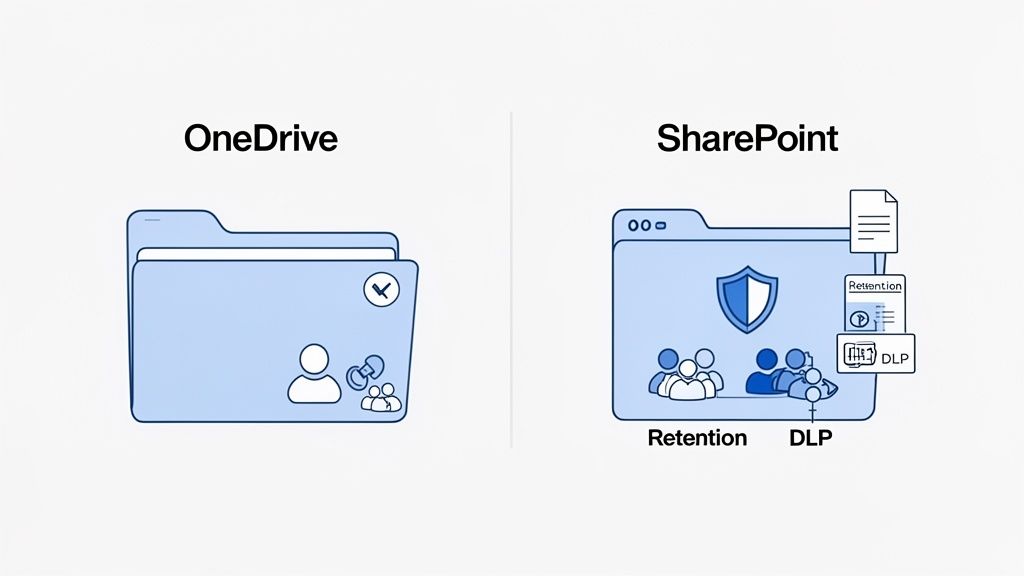
Ultimately, the choice comes down to who controls the data. OneDrive’s controls are simple and user-driven, perfect for less sensitive work-in-progress. SharePoint, in contrast, provides a powerful, centralised framework designed from the ground up to manage official corporate records and sensitive information at scale.
Permissions and Access Control
The most significant gap between the platforms is how they manage access. OneDrive operates on a simple sharing model, where an individual user grants access to specific files or folders. This works well for informal collaboration but lacks the granular control needed for business-critical data.
SharePoint, on the other hand, is built for sophisticated, role-based permission levels. Instead of managing hundreds of individual file permissions, an administrator can create security groups in Microsoft 365—such as ‘Finance Team’, ‘Project Managers’, or ‘External Partners’—and assign permissions to that group at the site, library, or even individual file level.
This structured approach provides far greater control and simplifies administration. For example, when a new employee joins the marketing department, an IT admin simply adds them to the ‘Marketing Team’ security group. They instantly gain the correct level of access to all relevant SharePoint sites and files, without anyone needing to manually share dozens of documents.
SharePoint’s permission model is inherently more secure and scalable because it centralises control. Access is determined by a person's role within the organisation, not by the ad-hoc decisions of individual file owners, drastically reducing the risk of accidental data exposure.
This structure is the bedrock of a robust data security posture. For a deeper look into structuring your data environment, you might find our guide on data governance best practices useful.
Advanced Data Governance Tools
Beyond basic access control, SharePoint offers a suite of advanced governance tools through its native integration with Microsoft Purview. This is a game-changer for businesses in regulated industries or those handling sensitive client information. While OneDrive has some of these features, SharePoint is where they truly excel at an organisational level.
Key Purview features applicable in SharePoint include:
- Retention Policies: Automatically retain or delete documents after a specified period to comply with legal requirements, such as holding financial records for seven years.
- eDiscovery: Quickly search for and retrieve specific content across all SharePoint sites for legal cases or internal investigations, and place data on legal hold when necessary.
- Data Loss Prevention (DLP): Configure policies that automatically identify and block the sharing of sensitive information, such as credit card numbers, national insurance numbers, or confidential project codes.
These tools transform SharePoint from a document library into a true compliance and information management system. Implementing them correctly requires careful planning, which is where organisations often rely on structured IT support to ensure policies are configured to meet their specific business and regulatory needs.
Compliance and Official Records
With these differences in mind, the role each platform plays in a compliance strategy becomes clear. SharePoint is the definitive choice for managing official corporate data. Its centralised ownership, granular permissions, and deep integration with Purview make it the system of record for any file that must be retained, audited, or protected by company-wide policies.
OneDrive, conversely, should be treated as a user’s personal workspace for drafts and informal collaboration where strict, centralised governance is not required. For IT leaders, enforcing this distinction is a critical policy decision. The Radicati Group's Microsoft SharePoint market analysis underscores its role as a trusted platform for corporate data protection, making it a justifiable choice for IT leaders looking to secure company information effectively.
Mapping Real-World Use Cases to Your Business
Understanding the theory behind SharePoint vs. OneDrive is one thing; translating it into a practical, value-driven strategy is what matters. The key is to map these tools to specific, real-world scenarios that align with your company's size, structure, and strategic goals. How you leverage OneDrive and SharePoint should evolve as your business grows, ensuring the technology continuously solves your most pressing operational challenges.
This section provides clear, situational examples to help you deploy both platforms strategically, whether you are a nimble startup or a large, established enterprise.
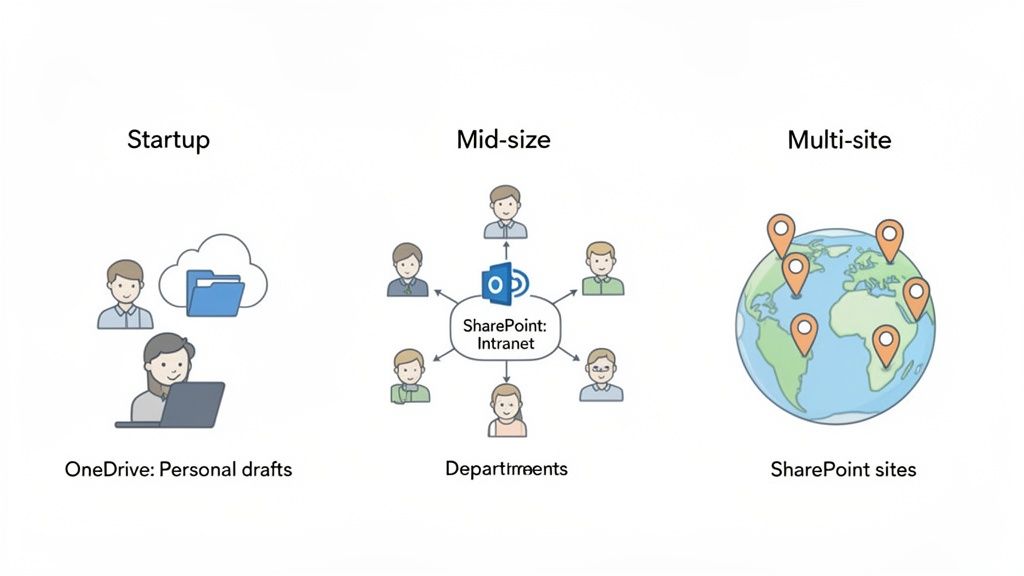
The Growing Startup Phase
For a new startup, agility and simplicity are paramount. In the early stages, individual productivity drives the business, making OneDrive the natural starting point. Each team member uses their personal OneDrive to draft proposals, create pitch decks, and manage their own files without the overhead of a complex site structure.
However, as the team expands, certain documents quickly become business-critical. This is the ideal time to introduce SharePoint in a targeted manner.
- Human Resources Hub: Establish a simple SharePoint site as the single source of truth for HR policies, employee handbooks, and onboarding materials. This ensures every new hire receives consistent, official information from day one.
- Client Project Folders: Instead of using messy shared folders in one person's OneDrive, create a dedicated SharePoint site for each major client. This centralises all project files—contracts, reports, deliverables—protecting business continuity if a team member leaves.
In this model, OneDrive remains the tool for 'Me' work, while SharePoint is strategically introduced to solve specific 'We' problems as they emerge.
The Established Mid-Sized Company
A mid-sized company faces a different set of challenges. The focus shifts from individual output to departmental collaboration, process efficiency, and knowledge management. At this stage, SharePoint becomes the core of the digital workplace, while OneDrive settles into its intended role as a personal drafting space.
For a mid-sized business, SharePoint transforms from a simple file server into a true business platform. It becomes the foundation for departmental intranets, process automation, and cross-functional project management—capabilities far beyond what OneDrive can offer.
A mature deployment strategy would typically include:
- Departmental Intranets: Each department—Marketing, Finance, Operations—gets its own SharePoint site. This becomes their central hub for team calendars, announcements, process guides, and shared resources.
- Process Automation: Connect SharePoint lists and libraries with Power Automate to digitise manual processes like holiday requests, expense claims, or document approvals, driving significant efficiency gains.
Meanwhile, OneDrive remains the go-to place for a manager drafting a performance review or a sales executive preparing a private quote before sharing it with the team.
The Multi-Site Organisation
For organisations with multiple offices or a large remote workforce, maintaining alignment and a unified culture is a major operational challenge. This is where SharePoint's powerful information architecture becomes essential—a task impossible to achieve with OneDrive.
A multi-site organisation can use SharePoint to build a cohesive knowledge management system. A central communication site acts as the main company intranet, broadcasting corporate news and policies to all employees. Hub sites can then connect related departmental or regional sites, creating a logical, searchable information network.
This structure allows an employee in the Manchester office to easily find official brand assets managed by the marketing team in London, all through one secure platform. It creates a single digital environment that fosters collaboration and ensures everyone is working from the same playbook, regardless of their location. Getting this architecture right is often where expert guidance proves invaluable for long-term success.
Comparing Administration and Platform Integration
From an IT administrator's perspective, the SharePoint vs. OneDrive conversation shifts from user experience to management overhead and strategic potential. While both platforms are managed through the Microsoft 365 admin centre, they require different levels of strategic attention and offer distinct integration capabilities that can transform business operations.
Understanding these differences is fundamental to building a digital workplace that doesn't just store files, but actively enhances productivity and security.
Administrative Focus and Overhead
OneDrive administration is largely a "set it and forget it" task. It is a low-touch environment where the primary goal is to establish sensible guardrails for personal storage without getting bogged down in micromanagement.
Key administrative tasks for OneDrive include:
- Setting Storage Quotas: Defining the maximum storage space allocated to each user.
- Controlling External Sharing: Establishing clear policies on whether users can share files outside the organisation and for how long.
- Sync Controls: Managing which devices can sync files to prevent sensitive data from being stored on unmanaged personal computers.
SharePoint, in contrast, requires ongoing, strategic management. It is not merely a file store; it is a foundational platform for the entire business. Administering SharePoint involves designing site architecture, managing complex permission structures, and overseeing content lifecycles to govern data from creation to disposal. This is not just about control—it's about securely managing core company assets.
SharePoint as an Integration Hub
This is the most significant difference from an IT standpoint: SharePoint is a powerful integration hub. While OneDrive is a destination for files, SharePoint is a service that powers other applications across Microsoft 365, transforming it from a simple document library into the content engine for your business.
Think of OneDrive as a personal filing cabinet. SharePoint is the central nervous system for your company's data. It doesn't just hold information; it connects it to the tools your teams use every day, creating a genuinely connected digital environment.
This integration is most evident with key Microsoft 365 applications:
- Microsoft Teams: As noted earlier, every file shared in a Teams channel is stored in its corresponding SharePoint site, enabling enterprise-grade governance over collaborative data.
- Power Automate: You can build automated workflows that trigger when a file is added or modified in a SharePoint library—for instance, initiating an approval process or notifying a project team.
- Power Apps: Custom business applications can be built using SharePoint lists as their data source, allowing you to quickly create effective tools for tasks like expense tracking or asset management without needing complex databases.
This deep integration makes SharePoint the true backbone of a modern workplace. When configured correctly, these connections unlock immense business value, but this requires expertise that extends beyond basic file management. To understand the identity layer underpinning this, explore our overview of what Azure Active Directory is and its crucial role in securing your entire setup. This level of strategic configuration is often where organisations seek expert IT support to ensure their systems are not just secure but built to scale with their ambitions.
Making the Right Choice for Your Business
The SharePoint vs. OneDrive debate is not about crowning a winner. The strategic question every business must answer is: what is the right tool for this specific task? The answer shapes more than just file storage—it defines the foundation of a secure, scalable, and intelligent digital workplace.
The core principle is simple. OneDrive is for personal productivity and draft work—the 'My Files' space. SharePoint is the hub for shared intelligence and official business processes—the home for 'Our Files'. Adopting this 'Me vs. We' mindset is the first step toward creating clarity and preventing the data chaos that stifles growth. When making the right choice, it's essential to consider processes like choosing the best approval management system, where SharePoint's structured capabilities really come into their own.
A Simple Decision Framework
To guide your teams, implement this straightforward framework. Before saving a file, employees should ask two key questions:
- Who owns this information? If it’s a personal draft or a sensitive document tied to an individual (like performance notes), it belongs in OneDrive. If the information is a business asset that must remain if an employee leaves, it belongs in SharePoint.
- What is the file’s purpose? If it’s for informal feedback or personal storage, use OneDrive. If it's part of a structured team project, a formal business process, or a company-wide resource, SharePoint is the clear choice.
This simple decision tree helps both administrators and users select the right platform by focusing on whether the goal is individual productivity or organisational control.
This visual perfectly reinforces the point: user-centric tasks are ideal for OneDrive, while organisation-wide collaboration and governance fall squarely in SharePoint’s domain.
Ultimately, a well-defined information architecture is the bedrock of a modern, secure business. It’s not just about organising files; it's about building a resilient system that protects company assets and empowers teams to work efficiently.
Getting this structure right from the start prevents costly migrations and security headaches later. It is the kind of foundational planning where the value of expert IT guidance becomes clear, ensuring your digital workplace is not just functional today, but ready for the future.
Frequently Asked Questions
Even with a clear understanding of the 'Me vs. We' concept, practical questions often arise during implementation. Here are answers to the most common queries to help resolve any lingering confusion.
Can we use OneDrive instead of SharePoint for a small team?
While you can technically share folders from an individual's OneDrive, it is a high-risk strategy for any business. This approach creates a critical data ownership problem: what happens when that employee leaves? The company could lose access to all shared files stored in their personal account.
Furthermore, this method bypasses the centralised control, version history, and seamless Microsoft Teams integration that SharePoint provides. For long-term security and scalability, SharePoint is the only appropriate choice for team files, regardless of your company's current size.
Are files in SharePoint as secure as files in OneDrive?
Both platforms are built on the same robust Microsoft 365 security foundation, which includes strong encryption for data at rest and in transit. The key difference lies in the level of administrative control. SharePoint offers far more granular and powerful security tools that are essential for business governance.
With SharePoint, you can implement role-based permission levels, configure custom access policies, and integrate with Microsoft Purview for advanced compliance and data protection. OneDrive's security is simpler and user-centric, making SharePoint the superior choice for managing sensitive corporate data and official records.
For a direct answer to the central question of this guide, and to quickly grasp the core distinctions, you can refer to this helpful FAQ on the difference between SharePoint vs OneDrive.
Do we pay extra for SharePoint if we have Microsoft 365?
No, in almost all cases you do not. The vast majority of Microsoft 365 Business and Enterprise plans include licenses for both SharePoint Online and OneDrive for Business. They are designed to be used together as part of an integrated productivity suite.
The challenge is not the cost of the license, but understanding how to leverage each tool for its intended purpose to maximise productivity while maintaining strong data governance.
A well-defined information architecture is crucial for security and efficiency. ZachSys IT Solutions provides the strategic guidance and structured support organisations rely on to build secure, scalable, and future-ready systems using the full potential of Microsoft 365. Learn more at https://zachsys.com.