
Subtotal $0.00



Before you create your first Group Policy Object (GPO), it’s critical to master two foundational concepts: understanding the processing order and designing a logical Organisational Unit (OU) structure. Nailing this foundation is the difference between a predictable, manageable environment and a chaotic mess that becomes a nightmare to troubleshoot.
Building a Solid Group Policy Foundation
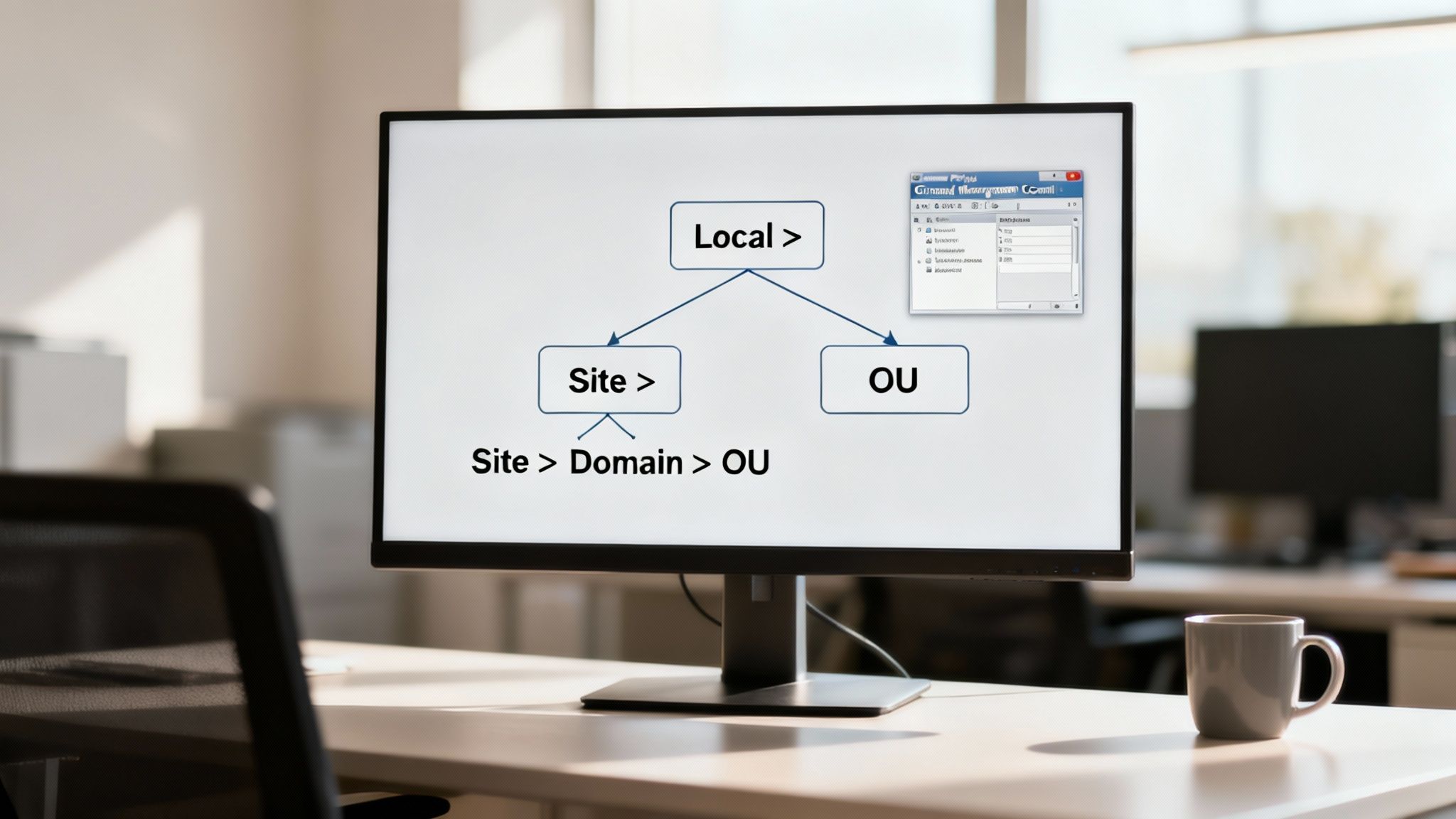
Let's establish the core principles before jumping into the console. Group Policy is the bedrock of centralised management in any Windows domain environment. It's the mechanism that allows IT teams to enforce security settings, deploy software, and shape the user experience across thousands of machines from a single point of control.
Even with the rise of modern device management tools, Group Policy remains essential for controlling domain-joined computers. Getting it right from day one is a strategic investment that will save countless hours of reactive troubleshooting in the future.
The LSDOU Processing Order
The power and predictability of Group Policy come from its strict, hierarchical processing order. You can remember it with the acronym LSDOU. Policies are applied in this specific sequence, and if settings conflict, the last one applied wins. This predictability is its greatest strength.
- Local: The first settings applied are from the policy on the local computer itself.
- Site: Next, any GPOs linked to the computer's Active Directory site are applied.
- Domain: After site policies, GPOs linked at the top of the domain are processed.
- Organisational Unit (OU): Finally, and most importantly for daily management, policies linked to the specific OU (and any parent OUs) containing the user or computer are applied. The policy linked to the closest OU wins in case of a conflict.
This hierarchy is precisely why a well-designed OU structure isn't just an administrative nicety—it's a strategic necessity for making Group Policy a powerful tool that works for you, not against you.
Why OU Structure Matters
Consider a common business scenario: you need to map a specific network drive for the Finance department, but the Marketing team must not have access to it. If all your user accounts are in the default "Users" container, targeting this setting becomes a complex task, often forcing reliance on cumbersome filtering methods.
The intelligent approach is to create distinct OUs from the outset, such as ACMEUsersFinance and ACMEUsersMarketing. With this structure, you can simply link the GPO that maps the finance drive directly to the Finance OU. The task is complete, and you've guaranteed the policy only applies to users in that department. This clean separation makes management intuitive and allows your infrastructure to scale without collapsing under its own complexity.
A thoughtful OU structure is the blueprint for your entire Group Policy framework. It enables targeted, efficient policy application and simplifies troubleshooting by making it clear which policies should apply to which objects.
Your Essential Toolkit: The GPMC
Your command centre for all Group Policy management is the Group Policy Management Console (GPMC). It's available by default on any domain controller or can be installed on a management workstation via the Remote Server Administration Tools (RSAT). This is where you will create, link, edit, and manage the entire lifecycle of your GPOs.
Building a clean GPO framework is also a critical component of maintaining a strong security posture. Many security baselines and compliance controls are enforced via GPO. Understanding what Cyber Essentials certification is, for instance, provides valuable context for the security policies you will create. The disciplined approach required for certification aligns perfectly with best practices for GPO management, helping you build a secure and compliant IT environment.
Creating and Linking Your First GPOs
With your OU structure mapped out, it’s time to move from theory to action. This is where we’ll create our first Group Policy Object (GPO) and tell Active Directory where to apply its settings.
It's vital to grasp the difference between creating a GPO and linking it. Think of it this way: creating the GPO is like writing the rulebook, while linking it is the act of handing that rulebook to a specific team and telling them to follow its directives.
Let's ground this in a common, real-world business challenge. Imagine your company wants to roll out a standardised corporate desktop background for all users to reinforce its brand identity. Concurrently, the security team has mandated blocking USB storage devices for everyone in the Finance department to prevent sensitive data exfiltration.
This situation requires two distinct policies, and applying best practices from the start will build good operational habits.
Get Your Naming Convention Straight First
Before you click "Create a GPO," pause. A server environment littered with ambiguous GPOs like "Policy1," "New Settings," or "Temp USB Block" becomes a sysadmin's nightmare. A clear, consistent naming convention is your first and best defense against future chaos.
A practical and effective approach is to use prefixes that describe the GPO's purpose and target audience. For our scenario, a convention like this works wonders:
- USR-Branding-CorpDesktopBackground: This name instantly tells you it's a User setting (USR), it's for Branding, and its purpose is to set the desktop background.
- SEC-Finance-DisableUSBStorage: This one is clearly a Security (SEC) policy, targeted at the Finance department, and its function is to disable USB storage.
This method provides immediate context without needing to open the GPO to inspect its settings. It’s a simple discipline that pays huge dividends as your environment grows in complexity.
Creating the GPOs
Launch the Group Policy Management Console (GPMC) and navigate to the "Group Policy Objects" container. This is the central library where every GPO in your domain resides before it's put into service.
- Right-click the "Group Policy Objects" container and select "New."
- In the dialog box, enter your carefully chosen name, such as USR-Branding-CorpDesktopBackground, and click OK.
- Repeat the process for SEC-Finance-DisableUSBStorage.
At this point, you've created two empty shells. They exist, but they have no effect. They contain no configured settings and are not linked to any part of your Active Directory structure. This is a core concept: a GPO is completely dormant until you link it.
Here’s a professional tip that will save you or your successor a massive headache later: document the GPO's purpose immediately. Right-click your new GPO, go to the "Details" tab, and use the comment box to explain what it does and why it was created. This thirty-second task can save hours of guesswork months or years from now.
Linking GPOs to Your OUs
Now, let's activate these policies by linking them. The corporate background policy needs to apply to everyone, so we'll link it high up in the OU tree that contains your user accounts. The USB restriction, however, is a surgical measure aimed only at the Finance department.
- To deploy the background, locate the OU containing all your user departments (e.g.,
ACMEUsers). Right-click it and choose "Link an Existing GPO…" From the list, select USR-Branding-CorpDesktopBackground. - For the USB block, navigate down to your
FinanceOU (e.g.,ACMEUsersFinance), right-click it, and again choose "Link an Existing GPO…" This time, select SEC-Finance-DisableUSBStorage.
By creating policies in the central container and then linking them, you maintain an incredibly clean and efficient system. You can link the same branding GPO to multiple OUs without creating duplicates. This is far more manageable than creating identical policies repeatedly.
This methodical process—sensible naming, immediate documentation, and deliberate linking—is what elevates Group Policy from a simple configuration tool into a powerful and scalable management framework. It’s how you avoid the tangled mess of legacy policies that plagues so many organisations.
Targeting Policies With Surgical Precision
Creating and linking a GPO is just the first step. The real art of effective IT management lies in targeting those policies with pinpoint accuracy. A broad-stroke approach is easy, but modern IT environments demand a much finer touch. This is where we move from the sledgehammer to the scalpel, ensuring the right settings apply to the right users and computers—and no one else.
When you open a GPO in the Group Policy Management Editor, you’ll see it's split into two fundamental halves: Computer Configuration and User Configuration. This division is critical. Computer settings apply to the machine itself at startup, regardless of who logs in. User settings follow the user, applying whenever they log on to any machine.
Navigating the Maze of Administrative Templates
Most of your time will be spent in the Administrative Templates section, which exists under both configurations. This is where thousands of settings are defined by ADMX and ADML files—XML-based templates that populate the editor.
Finding a specific setting can feel like searching for a needle in a digital haystack. For instance, to disable Microsoft Copilot in Windows 11, you would need to navigate to User Configuration > Policies > Administrative Templates > Windows Components > Windows Copilot and enable the "Turn off Windows Copilot" policy. While familiarity comes with experience, thinking logically about which component a setting belongs to will usually guide you to the right path.
Advanced Targeting With GPO Filtering
Simply linking a GPO to an Organisational Unit (OU) is often too broad. What if you need a policy to apply only to laptops, or just to members of a 'Remote_Users' security group within that OU? This is where GPO filtering becomes indispensable.
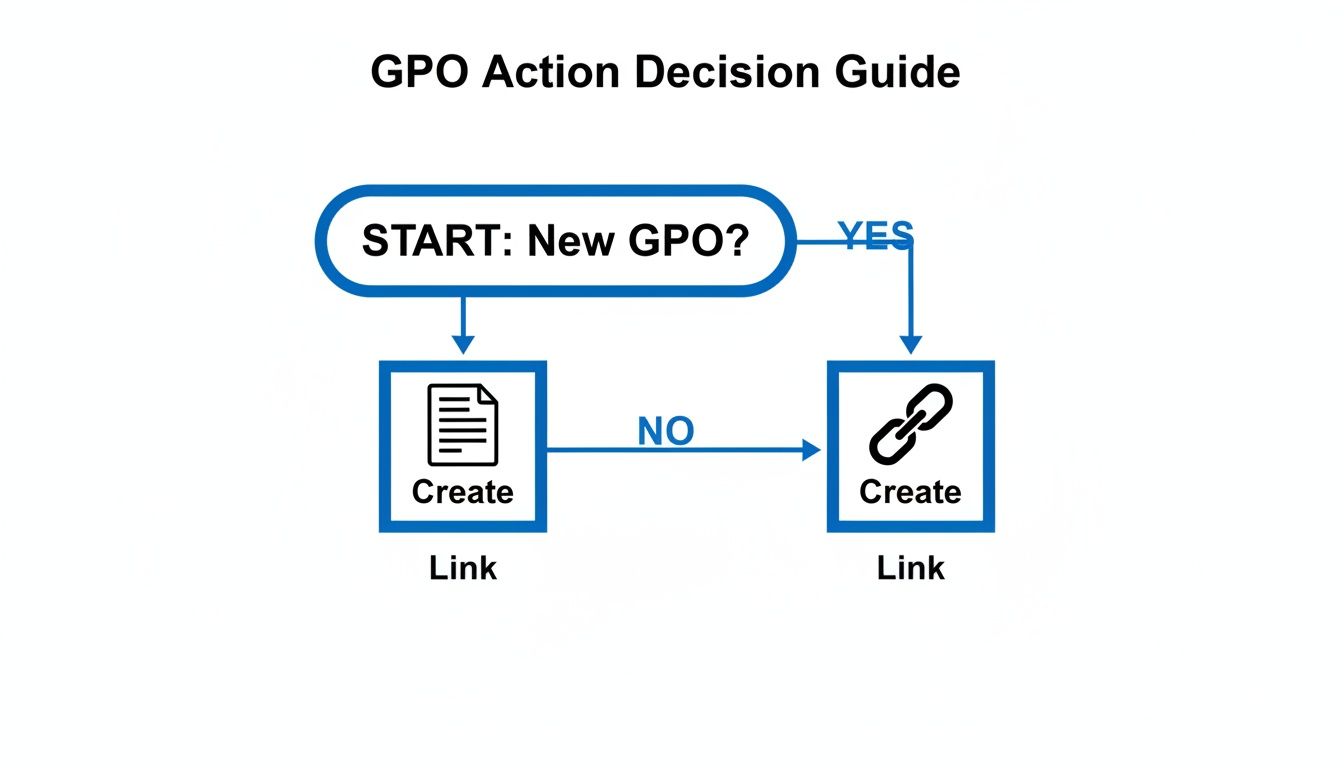
This flowchart helps visualize the decision-making process: should you create a new GPO, or can you reuse an existing one? This simple choice is key to promoting reusability and keeping your GPO environment clean and manageable.
Using Security Filtering for Group-Based Application
The most common and direct method for targeting a policy is Security Filtering. By default, a new GPO applies to "Authenticated Users"—essentially every user and computer in your domain. To narrow this scope, you remove "Authenticated Users" and add a specific security group instead.
Let's say you need to deploy VPN settings exclusively for your remote staff. Here’s the real-world process:
- First, create a security group in Active Directory named
SG-Remote-Users. - Populate this group with the relevant user accounts.
- In the GPMC, select your VPN policy. Under the "Scope" tab, find the Security Filtering section and remove "Authenticated Users".
- Finally, click "Add" and select your new
SG-Remote-Usersgroup.
With this change, the GPO will now only apply to members of that specific group, even if other users and computers are located in the same OU where the policy is linked.
When to Use WMI Filters for Granular Control
Sometimes, group membership isn't granular enough. You might need to target devices based on their hardware specifications or installed software. This is the perfect use case for a Windows Management Instrumentation (WMI) filter.
WMI filters are small queries that check for specific conditions on a machine before a GPO is processed. For example, you could have a GPO that enables BitLocker but use a WMI filter so it only targets laptops, leaving desktops unaffected. The WMI query for this might be: SELECT * FROM Win32_ComputerSystem WHERE PCSystemType = 2. The policy is only applied if the machine answers "true" to that query.
A Word of Caution: WMI filters are incredibly powerful but come with a performance cost. A complex or poorly written query can noticeably slow down computer startup and user logon times as the system evaluates it. Keep your queries simple and focused.
This drive for structured, targeted application isn't unique to IT. It mirrors how support systems in society are designed to provide stability. For example, in the UK, policy evolution around Special Guardianship Orders (SGOs) helps ensure children find stable homes. During 2023-24, 73% of the 3,860 SGOs were granted to former foster carers, showing a clear policy preference for maintaining existing bonds. This structured approach, much like a well-designed GPO, aims for consistent, positive outcomes. You can explore more data on these structured support systems from CoramBAAF's detailed statistics for England.
The Power of Item-Level Targeting
For the ultimate level of flexibility, particularly with Group Policy Preferences (GPPs), you can use Item-Level Targeting. This allows you to apply individual settings within a single GPO based on a vast range of criteria—from IP address ranges and operating system versions to registry key values and even the presence of a laptop battery.
Imagine you need to map a specific printer, but only for users on the second floor of your main office, who are on a particular IP subnet. Instead of creating a whole new GPO with a complex WMI filter, you can configure the printer mapping in a GPP and then use Item-Level Targeting. You would add a rule specifying that this preference only applies if the user's IP address falls within the 192.168.2.0/24 range. This level of granular control inside a GPO is a game-changer for many administrative tasks.
GPO Filtering Methods Compared
| Filtering Method | Primary Use Case | How It Works | Best For |
|---|---|---|---|
| Security Filtering | Applying policies based on user or computer group membership. | Matches the GPO against the security groups a user or computer belongs to. | Simple, role-based targeting (e.g., Finance department, Remote users). It's the go-to for most scenarios. |
| WMI Filters | Targeting based on hardware or software attributes of a computer. | Runs a WMI query on the target machine. The GPO only applies if the query returns a result. | Device-specific settings (e.g., applying to laptops only, or machines with a specific OS version). |
| Item-Level Targeting | Applying individual Group Policy Preferences based on a wide range of criteria. | Evaluates specific conditions (IP range, registry key, etc.) for each preference item within a GPO. | Highly granular control over specific settings like mapped drives or printer deployments without needing a separate GPO. |
Knowing when to use each of these tools is what separates a good administrator from a great one. While Security Filtering will be your daily driver, don't hesitate to use WMI or Item-Level Targeting when you need that extra layer of precision.
Advanced GPO Management and Best Practices
As an Active Directory environment scales, so does the complexity of managing it. What began as a neat collection of policies can quickly devolve into a tangled web of conflicting settings. To maintain order and ensure your infrastructure is stable and secure, it's essential to adopt advanced management strategies.
These practices are not just about tweaking settings; they are about building a disciplined, professional operational model. A well-managed GPO structure is often the hallmark of a mature IT operation—one that proactively prevents problems rather than constantly reacting to them.
Understanding Loopback Processing
One of the most powerful—and frequently misunderstood—features in Group Policy is Loopback Processing. Normally, user settings follow the user, regardless of which computer they log on to. But what happens when you need the computer's physical location to dictate which user policies get applied?
Consider a shared kiosk in a reception area or a conference room PC. You want any user who logs on to that specific machine to receive a standardised, locked-down experience—a fixed desktop background and no access to system tools, regardless of their own departmental GPOs.
This is precisely what loopback processing is designed for. It has two modes:
- Replace Mode: This mode is direct and absolute. It completely ignores the user’s normal GPOs and only applies the user policies from GPOs linked to the computer's OU. It is the perfect choice for creating a totally controlled, consistent user environment on shared devices.
- Merge Mode: This mode is more nuanced. It first applies the user's standard GPOs and then applies the user settings from the computer's GPOs on top. Since the computer's GPOs are applied last, their settings win in case of a conflict.
Loopback processing is a game-changer for managing environments with Remote Desktop Session Hosts (RDSH) or any shared workstation, giving you the power to enforce computer-specific user settings with confidence.
Critical Best Practices for a Clean GPO Environment
Maintaining a healthy Group Policy environment requires discipline. Adopting a few core best practices from day one will prevent a world of technical debt and troubleshooting nightmares down the road. It’s what separates a scalable system from one that is brittle and unmanageable.
A structured approach is a common theme in successful systems, not just in IT. In the UK, the adoption process relies on clear policies to achieve positive outcomes. By 2022, 89% of adoption approval panels were held online, a policy shift that continued post-pandemic and was overwhelmingly well-received, with 81% of adopters rating the experience as good. This is a powerful example of how well-defined policies can boost efficiency and user satisfaction. You can see more on these structured policy frameworks from the Adoption UK Barometer 2023.
Never, Ever Edit the Default Domain Policy. This GPO is special. It sets critical, domain-wide account policies like password complexity and lockout rules. It should be used exclusively for this purpose. Piling other settings into this policy complicates troubleshooting and goes against established best practices. If you need other domain-wide settings, create a new, separate GPO.
Here are a few more non-negotiable rules for sane GPO management:
- One GPO, One Purpose: Avoid creating monolithic GPOs that configure dozens of unrelated settings. A policy named
SEC-Desktop-Settingsthat hardens the OS, maps a printer, and sets the company wallpaper is a recipe for disaster. Create separate GPOs for each distinct function. This makes troubleshooting infinitely easier. - Implement Change Control: Making on-the-fly changes to Group Policy is a high-risk activity. Implement a simple change control process: document the proposed change, test it on a non-critical OU, and get approval before deploying it to production. This simple discipline prevents countless unexpected problems.
- Disable Unused Portions: If a GPO only contains Computer settings, disable the User Configuration half (and vice-versa). This is a simple right-click in the GPMC and can slightly improve GPO processing speed on client machines.
Delegating GPO Permissions Safely
You shouldn't need to be a Domain Admin to manage Group Policy. The principle of least privilege is vital for security. You can—and should—delegate specific GPO tasks to junior administrators or other teams without handing over full administrative control.
The GPMC has a "Delegation" tab that allows you to assign granular permissions. For instance, you could grant your helpdesk team the ability to link existing GPOs to an OU they manage, but not the right to create new GPOs or edit existing ones. This control is fundamental to building a secure, scalable operational model and is a key pillar of any serious security framework. For those looking to deepen their understanding of modern security, our guide on what Zero Trust security is is an excellent starting point.
By combining advanced features like loopback processing with strict best practices and smart delegation, you transform Group Policy from a simple configuration tool into a strategic asset for managing and securing your organisation.
Troubleshooting and Maintaining Your GPOs
Even in a perfectly designed Group Policy framework, issues will arise. A GPO that appears flawless in the console might fail to apply on a client machine, leaving you searching for answers.
Knowing how to diagnose these problems quickly and efficiently is a critical skill. It's what turns Group Policy from a source of frustration into the reliable management powerhouse it is designed to be.
Diagnosing GPO Application Issues
When a policy doesn't apply as expected, your first step should never be guesswork. You need a clear, unfiltered view of what the client machine is actually experiencing. Diagnostic tools are essential for cutting through the noise and revealing the on-the-ground reality.
The cornerstone of GPO troubleshooting is the gpresult command. On a client machine, open a command prompt and run gpresult /r. This provides a quick summary of which GPOs were applied to both the user and the computer during the last refresh. It's the fastest way to confirm if your policy is even reaching the machine.
For a much deeper analysis, generate the detailed HTML report:
gpresult /h C:tempgpo_report.html
This command creates a comprehensive report that mirrors the GPMC interface. It shows not only the GPOs that were successfully applied but, more importantly, those that were denied. It provides the specific reason for denial—be it a security filter, a WMI filter that returned false, or an empty GPO.
Common Culprits and Their Fixes
In our experience, when a GPO fails to apply, the cause typically falls into one of a few common categories. Checking these first will resolve the issue in the majority of cases.
- Security Filtering Errors: This is the most frequent culprit. You've linked the GPO to the correct OU, but you have either forgotten to add the right security group to the filter or—a classic mistake—you've removed "Authenticated Users" but forgotten that the computer account also needs "Read" permissions on the policy to process it.
- Replication Delays: In any environment with multiple domain controllers, it can take time for a new or modified GPO to replicate across the network. If a user logs into a machine that authenticates against a DC that hasn't received the update, they won't get the new policy. A
gpupdate /forcecan help, but sometimes patience is the only solution. - WMI Filter Problems: A faulty WMI filter will cause a GPO to be denied every time. Before applying a filter to a GPO, test your WMI queries on a target machine using PowerShell to ensure they return the expected results.
Don't overlook the obvious. Is the GPO link enabled? Did you create the policy but forget to configure any settings inside it? These simple oversights are the source of a surprising number of support tickets.
Proactive GPO Maintenance
Troubleshooting is reactive; great IT management is proactive. Your GPO framework is a critical piece of infrastructure and must be treated as such. This means having a solid plan for backups, restoration, and migration.
Regularly backing up your GPOs is non-negotiable. In the GPMC, right-click the "Group Policy Objects" container and select "Back Up All…" to save a complete snapshot. This is your safety net against accidental deletion or a misconfigured policy that causes widespread issues. Restoring a single GPO from this backup is a straightforward process that can be a lifesaver.
This type of structured approach is mirrored in other fields that manage complex systems. For example, the evolution of UK adoption policy, detailed by Adoption England, relies on structured events and clear processes to connect children with families. The 2024/25 report noted that 82% of prospective adopters rated Early Permanence events as 'excellent', demonstrating how a well-managed framework leads to success. You can read more about these initiatives in the Adoption England Annual Report.pdf).
Ultimately, a well-maintained GPO environment is a reliable one. Knowing how to quickly diagnose issues and having robust maintenance procedures in place ensures your policies remain a powerful asset, not a source of unpredictable problems.
Group Policy in a Hybrid Cloud World
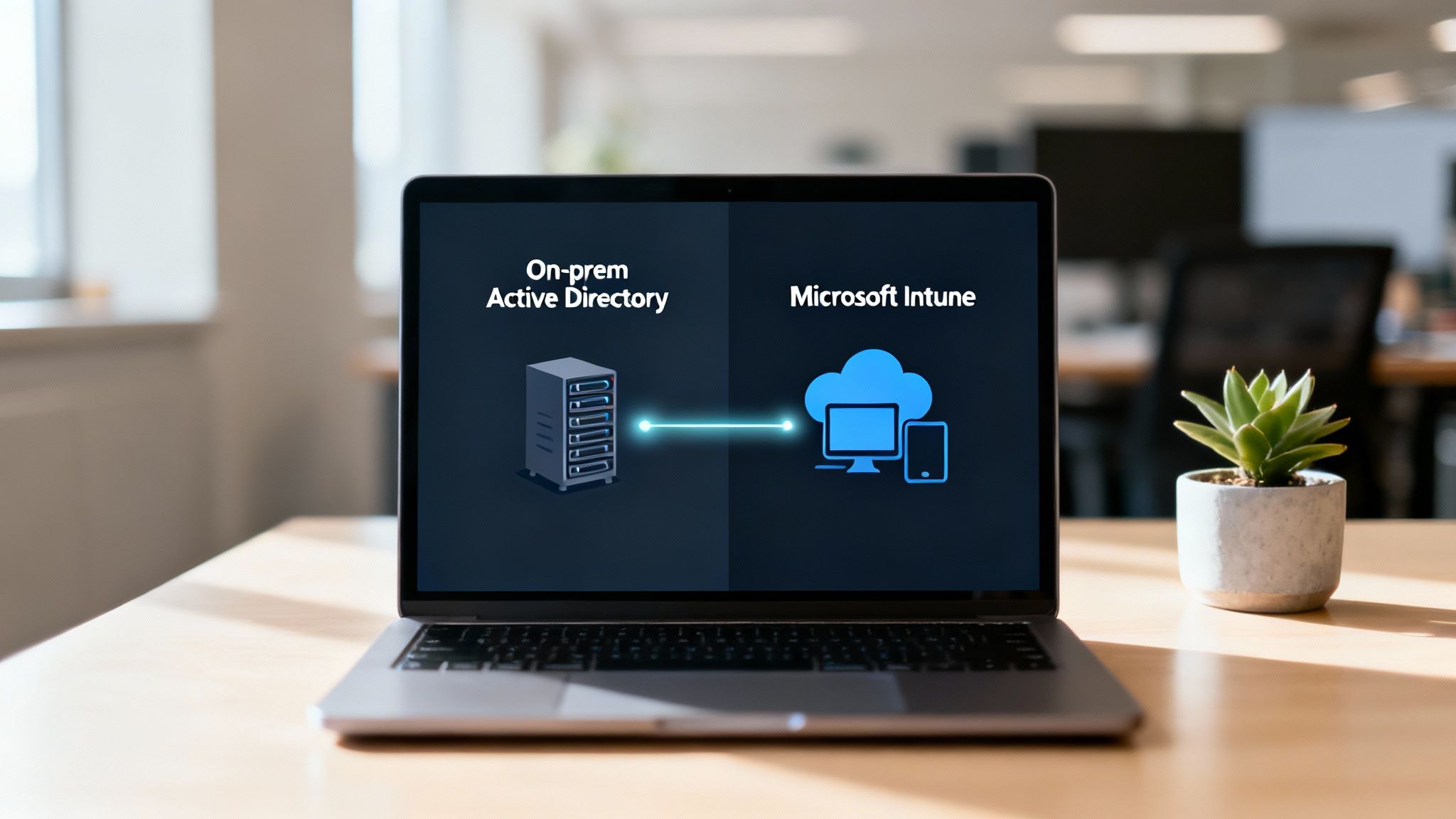
While Group Policy remains the undisputed champion for managing on-premises, domain-joined machines, the modern workplace has expanded beyond the office walls. With the rise of remote work and cloud services, IT now manages a hybrid landscape where devices may rarely, if ever, connect to the corporate network.
This is where cloud-native Mobile Device Management (MDM) solutions, particularly Microsoft Intune, become essential. The strategic approach is not to replace Group Policy but to see Intune as its modern complement, enabling a unified management strategy for a diverse device fleet.
Bridging On-Premises and Cloud Management
The key is to view them as two tools for different but related jobs. Group Policy excels at deep, granular control over traditional Windows PCs connected to your local Active Directory. Intune is built from the ground up to manage policies for devices anywhere in the world, including Windows, macOS, iOS, and Android endpoints.
Through hybrid identity models, organizations can synchronize their on-premises directory with the cloud. To understand this better, you can explore what Azure Active Directory is and how it facilitates this crucial connection. This synchronization allows for a seamless user experience while giving administrators the power to apply consistent security policies across both platforms.
For example, you might use a GPO to enforce complex security baselines on your office desktops, while using Intune's Configuration Profiles to manage BitLocker settings on laptops used by your remote workforce.
The goal is not to choose a winner between Group Policy and Intune. It's to build a cohesive strategy where GPOs handle the heavy lifting on-premises, and Intune extends your management reach to secure devices in the cloud.
The Role of GPOs in a Zero Trust World
Even within a cloud-first, Zero Trust security model, Group Policy remains highly relevant. The core principle of "never trust, always verify" demands that every endpoint be hardened and secure, regardless of its location.
GPOs are still one of the most effective tools for applying these foundational security baselines. This includes essential tasks such as:
- Disabling legacy and insecure protocols
- Enforcing strict firewall rules across all endpoints
- Restricting local administrator rights
Successfully navigating this blend of traditional and modern management tools is a common challenge for many IT teams. It requires careful planning and strategic guidance to build an IT system that is not only secure and scalable but also truly prepared for the future of work.
Frequently Asked Questions About Group Policy
Even with a comprehensive guide, questions inevitably arise when working within the Group Policy Management Console. Here are practical, real-world answers to some of the most common challenges IT professionals face.
How Can I Test a GPO Before Deploying It?
The only safe and reliable way to test a GPO is to use a dedicated test Organisational Unit (OU). This OU should be a microcosm of your production environment, populated with test user and computer accounts that mirror the real-world setup you intend to target.
Once your test OU is in place, link your new or modified GPO there first. Log in with a test account and run gpresult /r or, for a more detailed analysis, generate an HTML report with gpresult /h report.html. This allows you to confirm that every setting applies exactly as intended, preventing unexpected consequences for your live users and systems.
What Is the Difference Between Enforced and Block Inheritance?
These two settings represent a power struggle over how policies flow down through your OU structure. They control the flow from opposite ends.
- Enforced: When you set a GPO link to 'Enforced', you are playing the ultimate trump card. It guarantees that the settings within that GPO cannot be overruled by any policy linked to a lower-level, child OU.
- Block Inheritance: This setting is applied to an OU itself, not a GPO link. It's the OU's way of telling all parent OUs (and the domain or site) to stop their policies from flowing down to it.
However, the critical takeaway is that 'Enforced' always wins. An enforced GPO will override an OU that has inheritance blocked. For this reason, 'Enforced' should be used sparingly, as it can make troubleshooting policy conflicts significantly more difficult.
When a GPO isn't applying, your first move should always be to gather data. Run
gpupdate /forceon the client machine to pull the latest policies, then immediately follow it withgpresult /h report.html. This report is your roadmap; it will tell you if the GPO was applied, denied, or filtered out, and—most importantly—why.
My GPO Is Not Applying – What Should I Check First?
Before diving into complex diagnostics, always check the most common culprits first. The gpresult report mentioned above is your best friend; the 'Denied GPOs' section will almost always point you in the right direction.
Most of the time, the issue is one of these simple problems:
- Incorrect Security Filtering: The user or computer account is not a member of the security group you targeted.
- Disabled GPO Link: It sounds obvious, but it is surprisingly common for the link between the GPO and the OU to be disabled.
- WMI Filter Failure: The WMI query you configured is returning 'false' on the client machine, which prevents the GPO from being applied.
Checking these fundamentals first will solve the vast majority of application issues and save you hours of unnecessary troubleshooting.
Mastering Group Policy, from foundational principles to advanced troubleshooting and integration with modern cloud platforms, requires both technical skill and strategic foresight. For organisations aiming to build a secure, scalable, and future-ready IT infrastructure, expert guidance is invaluable. ZachSys IT Solutions provides the specialist knowledge and hands-on support to transform your IT environment into a strategic business asset. Learn more about how we can help your organisation succeed.