
Subtotal $0.00


To map a network drive is to assign a drive letter, like Z:, to a shared folder on a server. This simple action makes the remote storage appear in File Explorer or macOS Finder just like a local drive, seamlessly integrating it into a user's everyday workflow. For any business that relies on shared files for collaboration, this remains a foundational IT practice.
This guide explains not just how to map a drive, but why it remains a crucial technique in modern hybrid environments, how to automate it for scalability, and how to secure it properly to protect your business data.
Why Mapped Network Drives Are Still a Staple in the Cloud Age
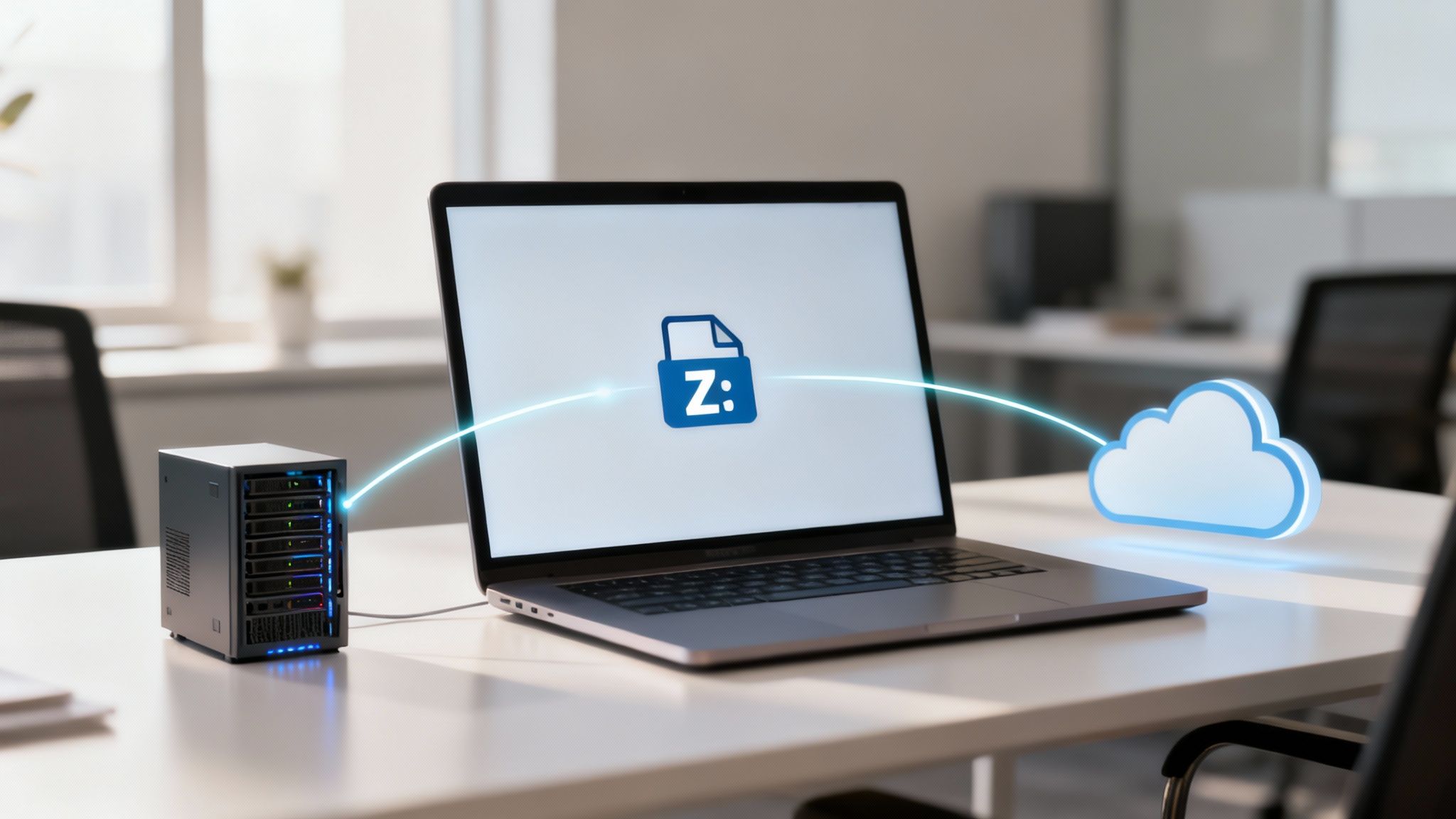
With the rise of cloud-native storage, it’s tempting to view mapped drives as a relic of a past IT era. In reality, they are more relevant than ever, serving as the perfect bridge between familiar user habits and the power of modern, centralised infrastructure. Mapping a network drive hides the backend complexity, whether the data resides on a physical server in the next room or a sophisticated cloud service like Azure Files.
The value lies in providing a user experience that requires virtually no training. If your team is accustomed to navigating to the 'Z:' drive for shared projects, that workflow doesn't have to change, even if the underlying storage has been migrated to the cloud.
Bridging Familiar Workflows with Modern IT Needs
The primary function of a mapped drive today is to abstract complexity. Users don't need to know the technical details of a server path or a cloud storage endpoint; they just need reliable access to their files. This consistency dramatically smooths out technology transitions and boosts productivity.
In a modern business context, the advantages are clear:
- Simplified Access: It eliminates the need to remember or type long network paths (
\ServerNameShareNameDepartmentProjects), reducing user errors and support tickets. - Legacy Application Compatibility: Many older but business-critical applications are hard-coded to access files using drive letters. Mapped drives are essential for ensuring these systems continue to function during and after infrastructure upgrades.
- Enhanced Productivity: Accessing frequently used files directly from File Explorer or macOS Finder is faster and more intuitive than navigating through a web portal for routine tasks.
The core benefit is consistency. Whether a team member is in the office or connecting remotely via a VPN, their 'Z:' drive works the same way. This provides a stable and predictable environment for everyone to collaborate in.
Powering the Modern Digital Economy
This seamless blend of on-premises habits with cloud capabilities is vital for business operations. In the UK, the digital economy contributed an estimated £160 billion in gross value added (GVA) in 2023, representing about 6.5% of the nation's total economic output.
This growth underscores the importance of robust digital infrastructure. For companies migrating from aging on-site servers, mapping drives to cloud services like Microsoft Azure provides secure, scalable access to shared resources without disrupting established workflows. You can find more insights on the UK's digital economy on Statista.com.
Ultimately, mapping a network drive is more than a technical task; it's a strategic decision. Executing it well requires a blend of technical skill and a deep understanding of business workflows—an area where structured IT support often provides the clarity needed for long-term success.
How to Map a Network Drive on Windows and macOS
Connecting to a shared resource is a fundamental IT skill, but the small details often determine whether the connection is reliable or a source of constant frustration. Let's walk through the correct way to map a network drive on the two most common business operating systems, focusing on the settings that prevent common connection errors.
The goal is to create a stable, secure link to a resource, whether it's the main office file server or a local Network Attached Storage (NAS) device.
Mapping a Drive in Windows 10 and 11
In Windows, the process begins in File Explorer. Right-click on 'This PC' and select 'Map network drive…' to open the main dialogue box. While this screen appears simple, two options are critical in a business environment.
-
Reconnect at sign-in: This checkbox is essential for any primary share, such as a user's home directory or a departmental drive. It instructs Windows to automatically re-establish the connection every time the user logs on, ensuring a consistent and predictable experience.
-
Connect using different credentials: This is an invaluable troubleshooting tool. If a user’s standard Windows login lacks the necessary permissions for the network share, this option allows you to specify an account that does. This is a common requirement when connecting to devices like a NAS that manage their own separate user accounts.
In the 'Folder' field, enter the network path using the Universal Naming Convention (UNC) format: \ServerNameShareName. If you encounter issues connecting via the server name, try using its IP address instead (e.g., \192.168.1.100ShareName). This technique can bypass local network DNS problems that might be preventing the connection.
Connecting to a Server on macOS
For macOS users, the process is handled through Finder. Navigate to the 'Go' menu at the top of the screen and select 'Connect to Server…'. This opens the window where you will enter the server's address.
Because macOS handles network protocols explicitly, the path format requires a prefix. For a standard Windows file share, which uses the SMB protocol, the path must begin with smb://. For example: smb://ServerName/ShareName.
After entering the path and clicking 'Connect', macOS will prompt for user credentials. To make this connection easily accessible later, click the '+' button to add it to the 'Favorite Servers' list. For a persistent connection that mounts automatically on login, the most reliable method is to drag the mounted drive icon from the desktop into the user's 'Login Items' list, found under System Settings.
A common mistake is assuming a user's local Mac or PC password will automatically grant access to a network share. These are often separate, domain-level credentials. Always be prepared to use the 'Connect using different credentials' option in Windows or to enter specific user details when prompted on a Mac. Mastering this step is key to avoiding "access denied" headaches.
Before moving on, let's summarise the key settings. Understanding these options is crucial for setting up reliable and secure connections for your users.
Key Options When Mapping a Network Drive
This table breaks down the most important settings and why they matter, whether you're working on a Windows PC or a Mac.
| Setting | Windows 10/11 | macOS | Best Practice Recommendation |
|---|---|---|---|
| Path Format | Uses UNC path: \ServerNameShare |
Uses protocol prefix: smb://ServerName/Share |
Always confirm the correct format. Using an IP address can help bypass DNS issues on either platform. |
| Persistence | 'Reconnect at sign-in' checkbox | Add to 'Favorite Servers' or drag to 'Login Items' | For essential drives, always configure them to reconnect automatically. This dramatically reduces user friction and support calls. |
| Credentials | 'Connect using different credentials' option | Credential prompt after connecting | Never assume local credentials will work. Be prepared to enter specific domain or device-level credentials to avoid access errors. |
| Drive Letter | Assigns a specific letter (e.g., Z:) | Mounts as a named volume on the desktop/Finder | While macOS doesn't use drive letters, consistency in naming conventions is still helpful for users to identify resources. |
Nailing these small but significant settings from the start is what separates a smooth, reliable connection from a stream of user complaints and support tickets. A few extra seconds of attention here saves a lot of time later.
Automating Drive Mappings for Consistency and Scale
Relying on users to manually map a network drive is not a scalable solution for any modern business. As soon as you are responsible for more than a handful of employees, automation becomes a core operational requirement. It is the only practical way to ensure consistent access, eliminate human error, and free your IT team from an endless cycle of repetitive setup tasks.
In a Windows-based environment, Group Policy and PowerShell are the two primary tools for this job. Both are excellent for deploying settings across an organisation, but they address the challenge from slightly different angles. When implemented correctly, every user will find the correct drives waiting for them every time they log in—no intervention required.
Using Group Policy for Standardised Deployments
For most businesses running on Active Directory, Group Policy Objects (GPOs) are the standard for configuration management. Specifically, we use Group Policy Preferences (GPP), which offers a more flexible and intuitive method for managing drive mappings compared to traditional logon scripts.
This setting is located in the Group Policy Management Editor under User Configuration > Preferences > Windows Settings > Drive Maps. From here, you can create a new mapped drive policy and define its key attributes:
- Action: You'll typically choose 'Create' or 'Update'. 'Update' is often the best choice because it is idempotent: it creates the drive if it is missing and corrects it if it already exists, avoiding errors.
- Location: The UNC path to the network share, such as
\Server01Departments. - Drive Letter: The specific letter to assign, for example, 'P:' for a Public share.
- Label: A user-friendly name that appears in File Explorer, such as 'Shared Projects'.
The most powerful feature of GPP is item-level targeting. This allows you to apply a drive map only to users who meet specific criteria. For example, you can ensure the 'Finance' drive is only mapped for members of the "Finance Department" security group. This granular control is essential for enforcing security and the principle of least privilege. For a deeper dive, see our guide to crafting effective GPOs.
A quick tip from experience: always link GPOs at the appropriate Organisational Unit (OU) level in Active Directory. Applying a drive mapping GPO to your primary 'Users' OU ensures it targets the right people, while item-level targeting handles the specific departmental shares. A well-organised AD structure is the foundation of scalable management.
This process flow illustrates the manual mapping steps on both Windows and macOS, highlighting why automation is so critical for business efficiency.
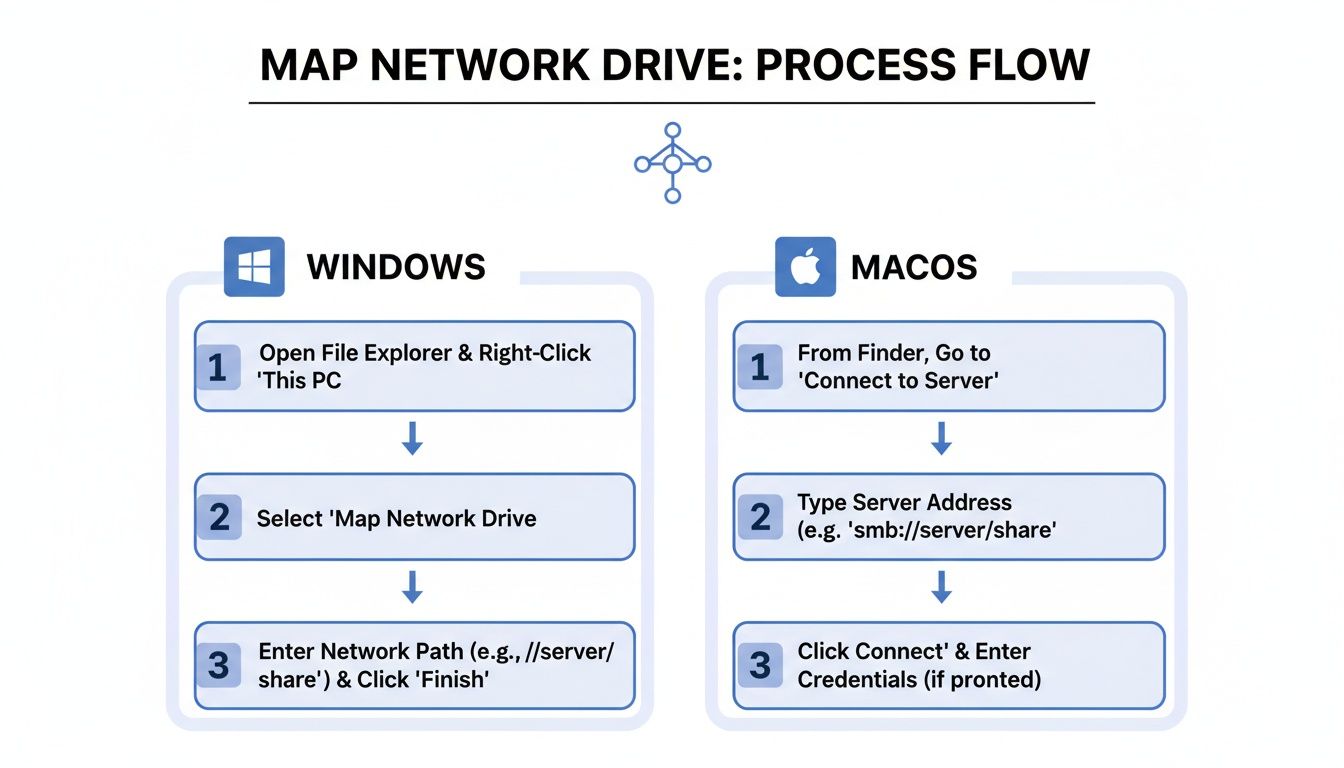
While the manual clicks are simple enough, automating the process with policies or scripts is what guarantees a consistent, reliable experience for everyone.
Leveraging PowerShell for Dynamic and Complex Scenarios
While GPOs are ideal for straightforward, static assignments, PowerShell scripts provide the flexibility to handle more complex or dynamic scenarios. Sometimes you need to perform a check before mapping a drive or implement logic that is too complex for GPP to handle alone.
The core command is the New-PSDrive cmdlet. A simple script can check if a drive letter is already in use and then create the mapping, preventing conflicts. This is particularly useful in environments with non-standard configurations or when you need to bundle other actions into a user's logon sequence.
PowerShell opens up a world of possibilities for powerful, scripted automation that can reliably manage system configurations day in and day out.
With 96.3% of the UK population being internet users in 2023, the demand for secure and consistent access to company data has never been higher. This widespread connectivity makes automated drive mapping essential, particularly for businesses in regulated fields. As cloud adoption pushes towards 70%, modernising IT to map drives to services like Azure Files, all while secured under Cyber Essentials and Zero Trust frameworks, becomes a fundamental business function.
Bridging On-Premises Habits with Cloud Storage
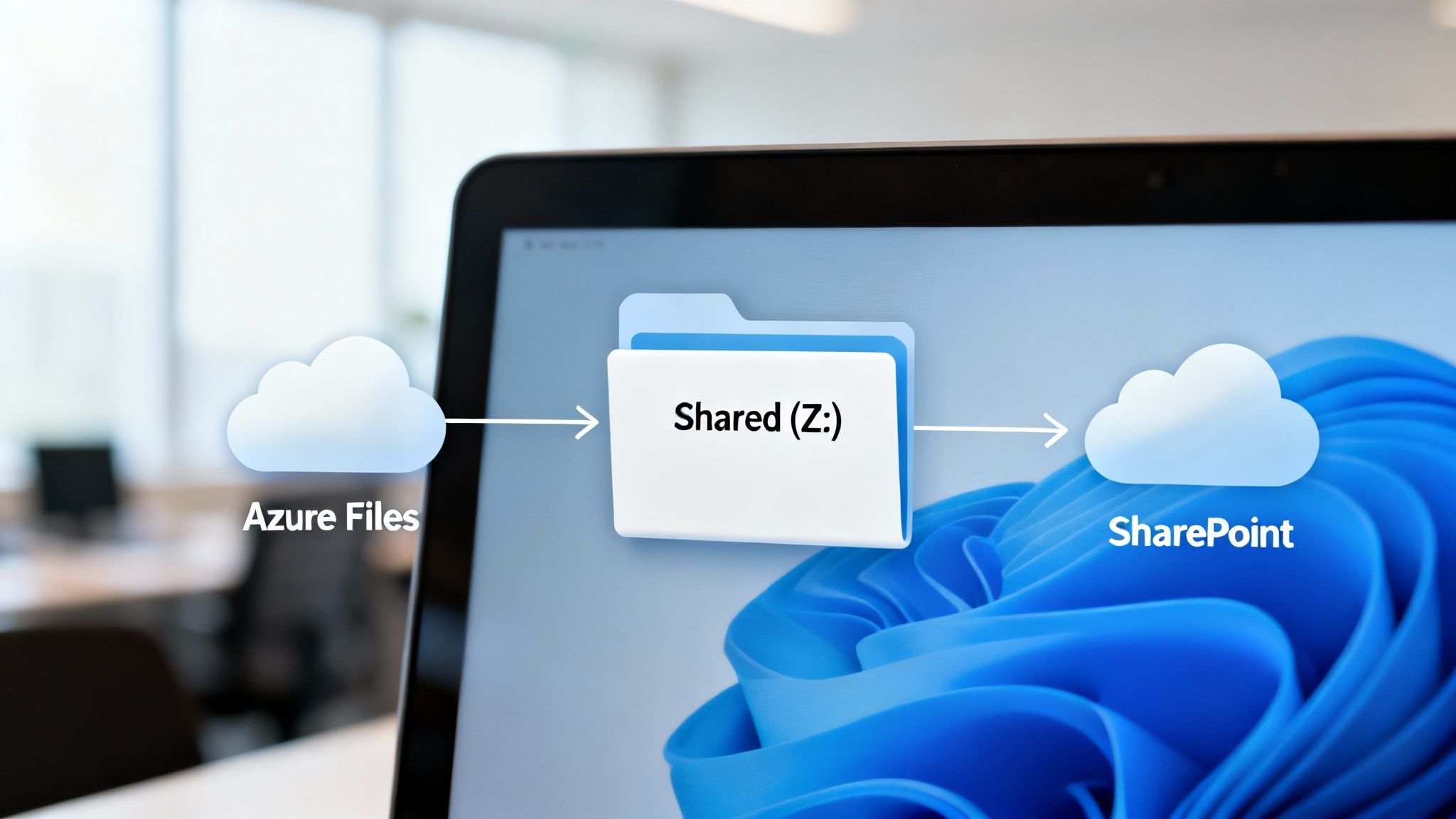
As businesses strategically move away from physical on-site servers, a common challenge emerges: how to retain the simple, familiar experience of a mapped ‘Z:’ drive while embracing the benefits of modern cloud storage. The most effective solution is to map the network drive directly to cloud services like SharePoint, OneDrive, or Azure Files.
This hybrid approach allows you to modernise your file infrastructure without disrupting how your team works. It enables your organisation to achieve the significant advantages of centralised cloud data—improved accessibility, simplified management, and stronger security—while maintaining a familiar user interface.
Why Connect a Drive Letter to the Cloud?
Mapping a drive to a cloud location is a strategic move that significantly eases the transition from on-premises hardware. For many businesses, it is the single most important element of a successful cloud adoption strategy.
The benefits are compelling:
- Centralised Data Management: All files reside in a single, secure cloud location, simplifying backups, permissions management, and regulatory compliance.
- Seamless User Experience: Users continue to use File Explorer as they always have, eliminating the need for extensive training on new web interfaces.
- Enhanced Security: Cloud platforms provide enterprise-grade security features, including conditional access policies, data loss prevention (DLP), and detailed audit logs.
This strategy is particularly powerful for organisations already invested in the Microsoft 365 ecosystem. You can gain a better understanding of how to structure your data by exploring the capabilities of Microsoft SharePoint.
Mapping to SharePoint and OneDrive
One of the most practical applications is connecting File Explorer directly to a SharePoint document library. By leveraging the OneDrive sync client, you can create a local folder that mirrors the SharePoint library. This synchronised folder provides a reliable, locally accessible entry point that behaves like a traditional network drive.
This setup offers users the performance of local file access combined with the resilience and collaborative features of cloud synchronisation. When one person modifies a file, the changes automatically sync to the cloud and propagate to all other team members, ensuring a single source of truth.
This method effectively retires the old physical file server. Instead of mapping to
\SERVERShare, you're connecting to a dynamic, cloud-backed repository. It’s the same user habit pointed at a much smarter backend.
Technical Prerequisites for Cloud Mapping
Successfully mapping drives to cloud services requires proper groundwork. It is not as simple as pointing to a URL; you must have the correct authentication and network configurations in place to ensure a secure and stable connection.
Key technical requirements often include:
- Azure AD Authentication: For seamless single sign-on (SSO), devices should be joined to Azure Active Directory (or Hybrid Joined).
- Correct Permissions: Users must be assigned the appropriate SharePoint or Azure Files permissions to their accounts before they can access the resources.
- Network Configuration: For services like Azure Files, your network must allow outbound traffic on TCP port 445, the standard port for the SMB protocol.
UK businesses have embraced cloud computing. According to the Office for National Statistics, over 69% had adopted cloud systems by 2023. For IT leaders, mapping drives to cloud services provides a clear path to decommissioning legacy hardware and enhancing operational efficiency. Nearly 50% of businesses that have adopted cloud services report improved service quality—a significant outcome for any modernising organisation. You can read more about these UK business technology findings.
Getting this integration right is a common area where businesses seek expert guidance to ensure the setup is secure, scalable, and aligned with long-term business goals.
Securing Your Network Shares and Permissions

Providing users with access to a network drive is only half the job. The true mark of a professional IT implementation is ensuring that access is secure and that individuals can only view and modify the data they are authorised to.
This is governed by the principle of least privilege: grant users the minimum level of permissions required to perform their job functions, and nothing more.
In a Windows environment, this principle is enforced through a two-layered system: Share permissions and NTFS (New Technology File System) permissions. Share permissions act as the primary gatekeeper for the entire shared folder, representing the first line of defence.
The Share vs. NTFS Permissions Partnership
Share permissions are broad, typically offering only 'Read', 'Change', or 'Full Control'. Modern best practice is to set Share permissions to 'Authenticated Users – Full Control'. While this may sound counterintuitive, it effectively delegates the responsibility for granular access control to the more sophisticated NTFS layer.
NTFS permissions are applied directly to files and folders, allowing you to define precisely who can read, write, modify, or delete specific data.
- Read: Allows users to view files and subfolders.
- Write: Allows users to create new files and append data to existing ones.
- Modify: A powerful combination of read, write, and delete permissions.
- Full Control: Grants complete ownership, including the critical ability to change permissions on files and folders.
The golden rule is that the most restrictive permission always wins. If a user has 'Full Control' at the Share level but only 'Read' access via NTFS for a specific folder, they will only be able to read its contents. This dual-gate system is fundamental to securing your data.
Declutter and Defend with Access-Based Enumeration
Beyond setting permissions, a simple yet powerful feature called Access-Based Enumeration (ABE) can significantly improve both user experience and security. When enabled on a file share, ABE automatically hides any folders and files for which a user does not have at least 'Read' permission.
This provides two key benefits. First, it declutters the user's view—the marketing team won't even see the finance department's folder, preventing unnecessary curiosity. Second, it hardens your security by making it more difficult for unauthorised users or potential attackers to discover sensitive data directories.
Getting these controls right is foundational. The next logical step is integrating them with a modern identity solution. You can get a better understanding of how to manage user identities by learning what Azure Active Directory provides. Properly configured permissions aren’t just settings; they’re essential components for aligning your infrastructure with frameworks like Cyber Essentials.
Troubleshooting Common Drive Mapping Errors
Even with a perfectly automated setup, issues can arise. When a user reports their mapped drive has vanished or is producing an error, it is crucial to have a methodical troubleshooting process. This section covers the most common real-world issues, helping you diagnose and resolve them efficiently.
A logical approach, starting from the user's machine and working back to the server, saves time and ensures you don't overlook an obvious fix.
Drives Failing to Reconnect on Startup
One of the most frequent complaints is a drive showing a red 'X' in File Explorer after a reboot. Often, this is a cosmetic timing issue where Windows attempts to connect before the network is fully initialised. A simple double-click on the drive is usually sufficient to force a reconnection.
If the drive consistently fails to reconnect, however, it points to a deeper problem. Your diagnosis should include:
- Check the 'Reconnect at sign-in' setting: Was this box missed during a manual setup? For automated deployments via GPO, verify that the policy is applying correctly to the user.
- Confirm Network Connectivity: Can the user's machine resolve and reach the server? A
ping ServerNamecommand from the Command Prompt will test basic network connectivity. A failure here often indicates a DNS issue.
Persistent Access Denied Errors
The "Access Denied" message is frustrating, particularly when you believe permissions are correct. This error almost always indicates a credential mismatch or a permissions block.
First, remember that Share and NTFS permissions work in tandem, and the most restrictive permission wins. Double-check that the user's account has the necessary rights at both levels on the server. A common oversight is forgetting to add a user to the correct security group.
Another frequent cause, especially with recent Windows updates, relates to how credentials are handled. Windows has become stricter about connecting to devices that allow insecure guest logons, a feature found on some older NAS devices.
In such cases, the solution is often to re-map the drive and explicitly use the 'Connect using different credentials' option. This forces Windows to use specific, known-good credentials for the share rather than attempting to pass through the user’s standard login, which may not have access.
Drive Letter Conflicts and Application Failures
Occasionally, a drive maps successfully, but an application that depends on it fails. This is often caused by a drive letter conflict. If a user connects a USB drive that claims the 'Z:' drive letter before the network drive connects, the mapped drive will fail to appear.
The best practice is to be strategic with drive letter assignments. Avoid common letters like D:, E:, and F:, which are frequently used by local devices. Instead, standardise on letters from the end of the alphabet (e.g., Z:, Y:, X:) for network resources to minimise the chance of a conflict. Enforcing these standards via Group Policy prevents these issues from occurring in the first place.
Frequently Asked Questions About Network Drives
Once your network drives are operational, a few common questions inevitably arise. Understanding these will solidify your knowledge and help you manage real-world scenarios with confidence.
Can I Map a Network Drive from Home?
Yes, but it must be done over a secure connection. The only safe method for connecting to an on-premises file server from an external location like your home is through a Virtual Private Network (VPN). A VPN creates a secure, encrypted tunnel over the internet, effectively placing your remote computer on the office network.
Never expose a file server directly to the public internet. This creates a significant security risk. For modern setups, a cloud-based solution like Azure Files is a superior choice, as it is designed for secure remote access without requiring complex VPN configurations.
Mapped Drive vs. Network Location: What's the Difference?
This is a common point of confusion. A mapped drive is deeply integrated into the operating system. It receives its own drive letter (e.g., Z:), appears alongside local drives in 'This PC', and is often a hard requirement for legacy applications that can only save files to a lettered drive path.
A network location, by contrast, is essentially a shortcut. It appears in the 'Network locations' section of File Explorer but lacks the deep OS integration of a mapped drive, which can sometimes cause issues with older software.
The key takeaway: use a mapped drive for primary, business-critical shares that teams access daily or that specific applications rely on. For temporary access to a folder where deep integration is unnecessary, a network location is sufficient.
Why Does My Mapped Drive Have a Red X?
A red 'X' over a network drive icon can be alarming, but it is often a cosmetic issue. It typically occurs when Windows attempts to connect to the drive during startup before the network connection is fully established. In most cases, double-clicking the drive will force it to reconnect, and the red 'X' will disappear.
However, if the drive remains inaccessible after a click, it indicates a genuine connectivity problem. This could be due to the server being offline, a DNS issue, or a problem with your VPN connection, signaling that it is time to follow the troubleshooting steps covered earlier.
Navigating the complexities of secure, scalable file access requires careful planning and execution. ZachSys IT Solutions provides the strategic guidance and structured support organisations rely on to build future-ready IT systems.
For expert IT consultation, visit us at ZachSys.